Add the Jooosi Icon widget to a container in Elementor. Choose an icon in Content or enter its full prefix:name, then adjust its color, size, and alignment in Style.
Enable the icon source you want in Jooosi Icon settings first. See Icon Sources for setup.
Add and choose an icon#
Step 1: Add the Jooosi Icon widget#
In the Elementor editor, search the Elements panel for Jooosi Icon, then drag it into a container.
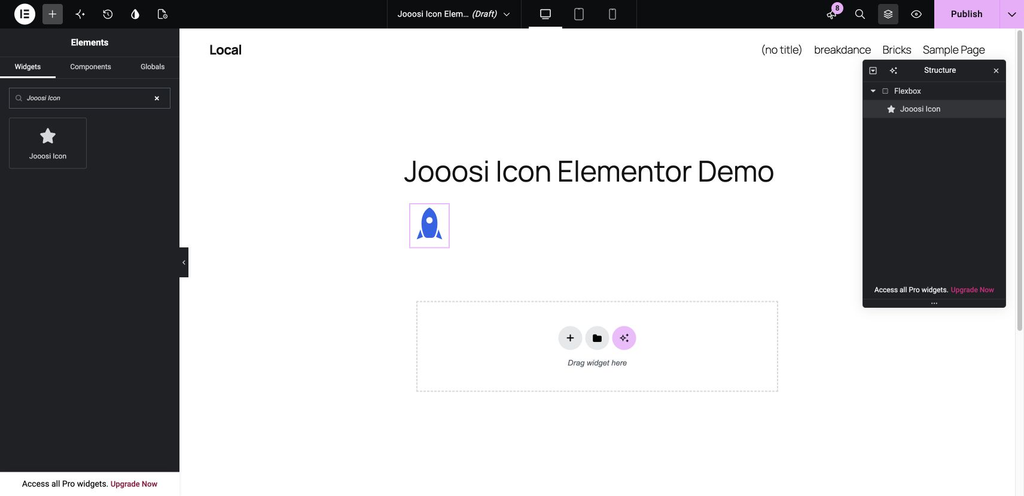
Step 2: Choose an icon#
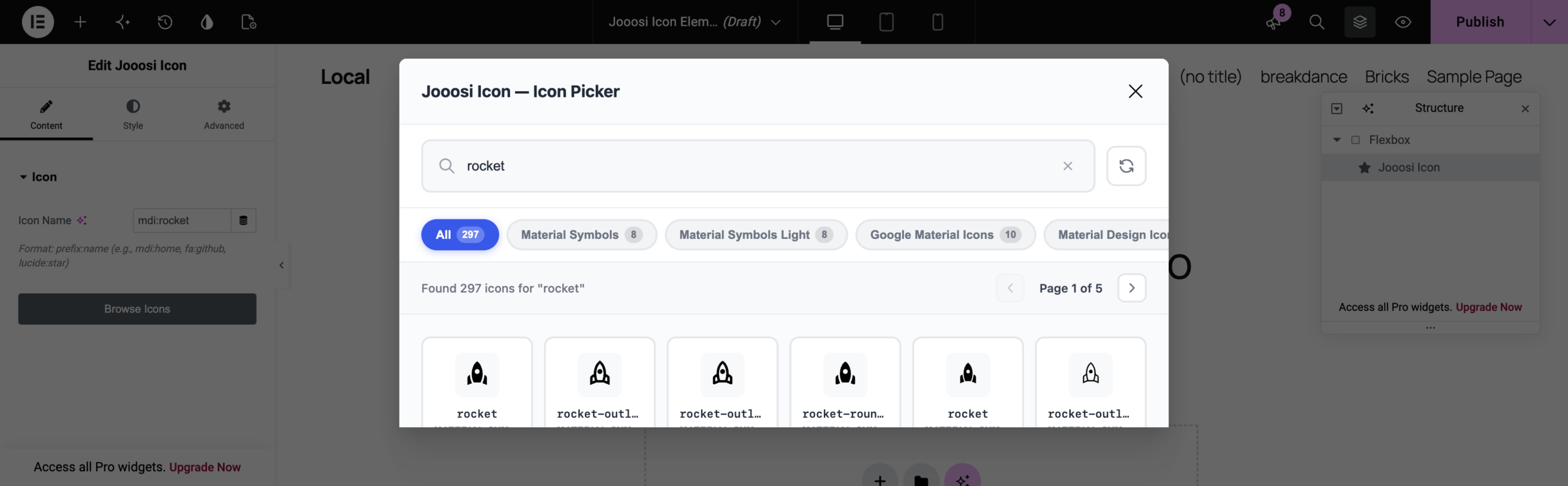
In the widget’s Content tab, open Icon and select Browse Icons. Search for an icon or filter by collection, then select a result. If you know the icon ID, enter it in Icon Name using the full prefix:name format, such as mdi:rocket.
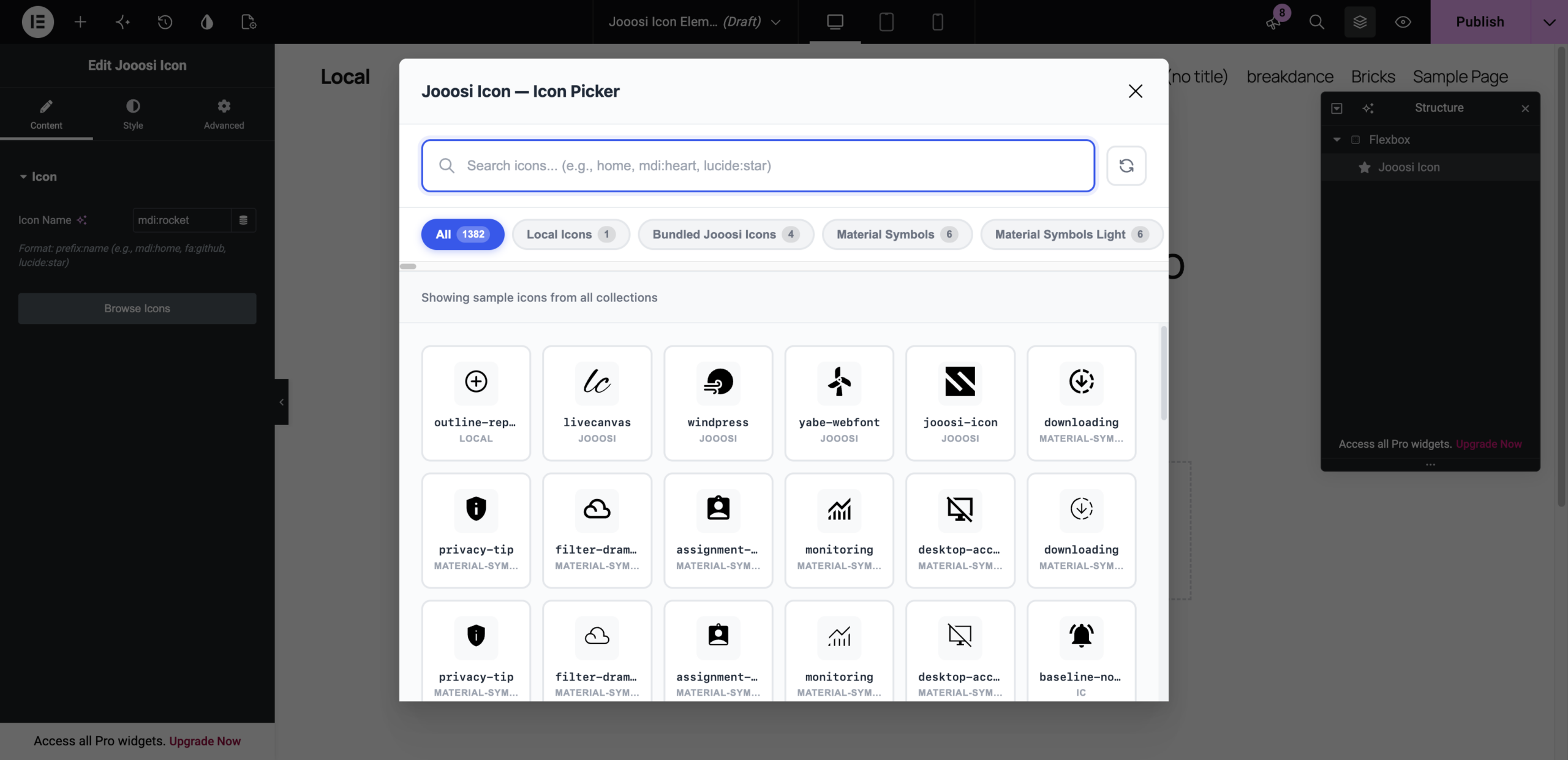
prefix:name identifier in Icon Name.Set size, color, and alignment#
Open the widget’s Style tab. Choose a Color, or leave it unset to inherit the surrounding text color. Set Width and Height. Use the device control beside each setting to choose values for Desktop, Tablet Portrait, or Mobile Portrait. Set Alignment to place the widget left, center, or right.
Update and preview#
Click Update or Publish, depending on the page’s status. Preview the layout at desktop, tablet, and mobile widths, and confirm the icon’s size, color, and placement at each breakpoint.