Use the Jooosi Icon field type to save an icon with your ACF content, then choose the return value your template needs.
Create a Jooosi Icon field#
Step 1: Add the field to a field group#
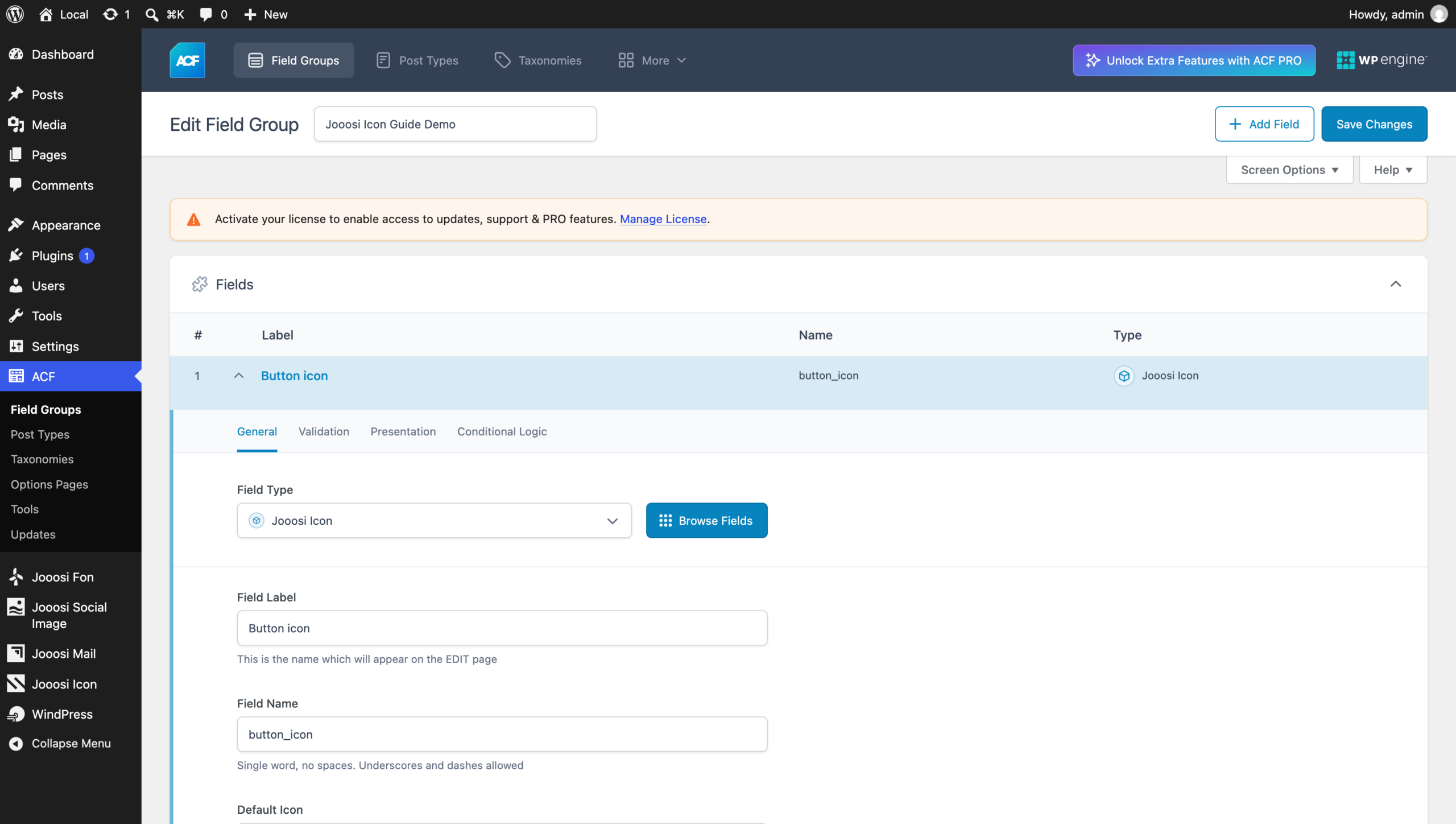
In the WordPress admin, open ACF → Field Groups, then create a field group or edit an existing one. Add a field and choose Jooosi Icon as its type.
Step 2: Configure and save the field#
Give it a clear label, such as Button icon, and a stable field name, such as button_icon. You can set a default icon with its source prefix and name, for example lucide:arrow-right. Add location rules for the content types where editors will use this field, then save the group.
Choose an icon in your content#
Step 1: Open the field#
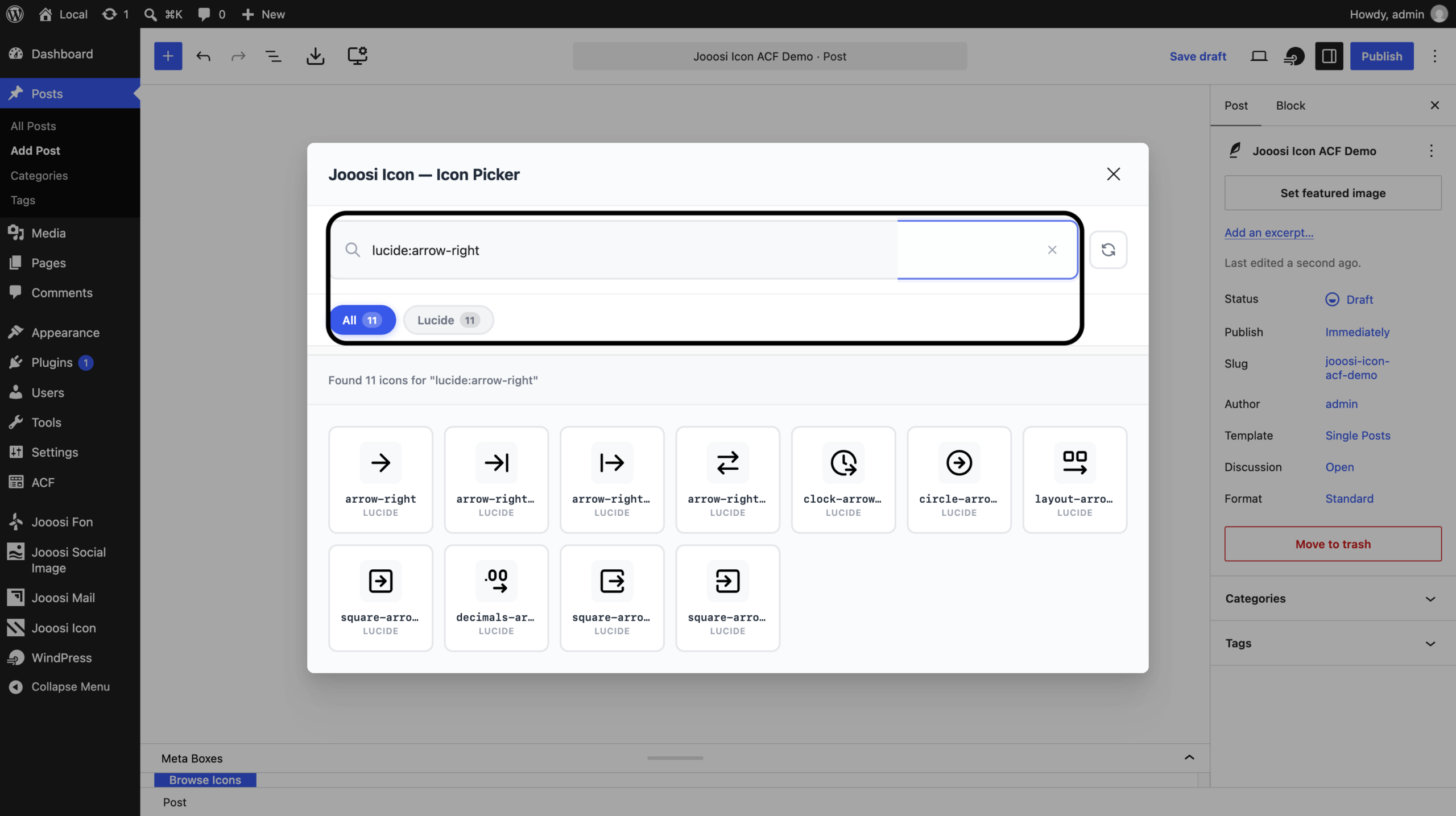
Edit a post, page, or custom post type that matches the field group’s location rules. Find the field and select Browse Icons.
Step 2: Search and select an icon#
Search by icon name or collection, review the results, and select an icon. For example, lucide:arrow-right searches the Lucide collection. The field stores the icon identifier, so you can change the selection later without copying an SVG into your content.
Step 3: Save the content#
Update the post or page. The selected icon is now stored in the ACF field for your theme or page builder to render.
Choose a return format#
In the field settings, choose the return format that matches your template. Icon Name is the default.
Icon Name#
Returns the full identifier, such as lucide:arrow-right. Pass it to the jooosi-icon custom element and escape the dynamic attribute value. This example treats the icon as decorative:
<?php
$icon_name = get_field( 'button_icon' );
if ( $icon_name ) {
    echo '<jooosi-icon name="' . esc_attr( $icon_name ) . '" aria-hidden="true"></jooosi-icon>';
}
?>
If the icon carries meaning, provide an accessible text label with the surrounding content.
Icon Array#
Returns a structured value with the icon name, source prefix, and icon key. Use these parts when your PHP or integration needs the source and icon details separately.
HTML#
Returns sanitized <jooosi-icon> element markup for direct output. Use it where your template expects HTML; do not escape it as plain text.
Troubleshooting#
- The field type is missing: confirm ACF and Jooosi Icon are both active, then reload the field group editor.
- The field is not visible: check the field group’s location rules and edit a matching post or page.
- The icon is blank: confirm the field has a selection and its icon source is enabled.