Ready to install Jooosi Icon? Follow this guide to get started.
Prerequisites#
Make sure your WordPress site meets the plugin requirements before you install:
- WordPress 6.0 or later.
- PHP 8.1 or later.
- If you plan to browse Iconify icons, allow your WordPress server to make outbound requests to the Iconify API. Uploaded SVGs and bundled icons are served locally.
Cloud Providers#
If you are looking for an affordable and reliable cloud hosting provider, we recommend the following providers:
The provider links below are referral links. If you sign up through one, Jooosi may earn a commission at no additional cost to you.
Plugin Installation#
Install Jooosi Icon from the WordPress dashboard or upload the plugin ZIP archive.
Install from the WordPress dashboard#
To install Jooosi Icon from your WordPress admin screen, follow these steps:
- Sign in as a WordPress administrator and go to Plugins → Add New Plugin.
- Search for Jooosi Icon.
- Select Install Now, then select Activate.
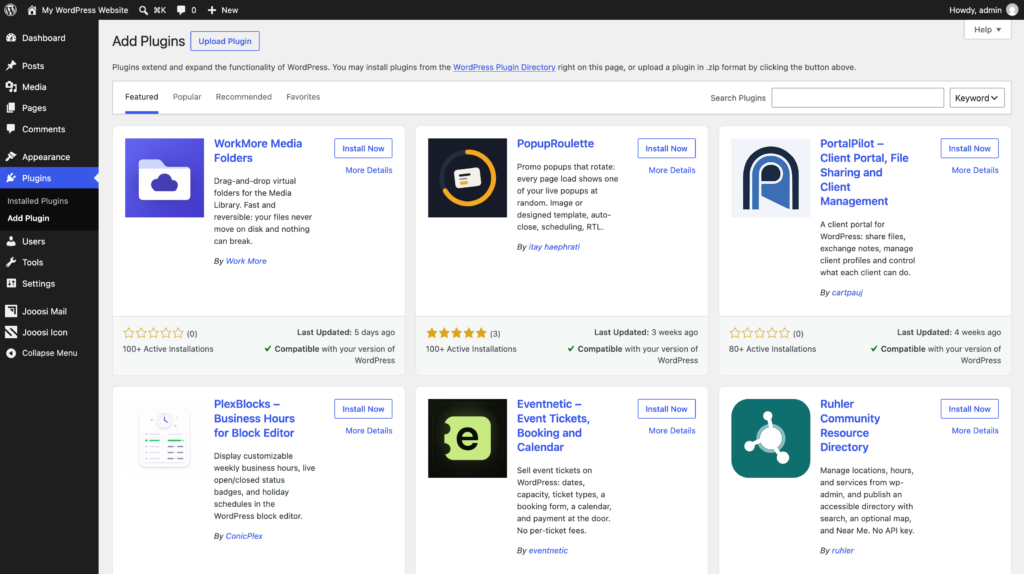
Step 1: Open Plugins, then choose Add New Plugin.
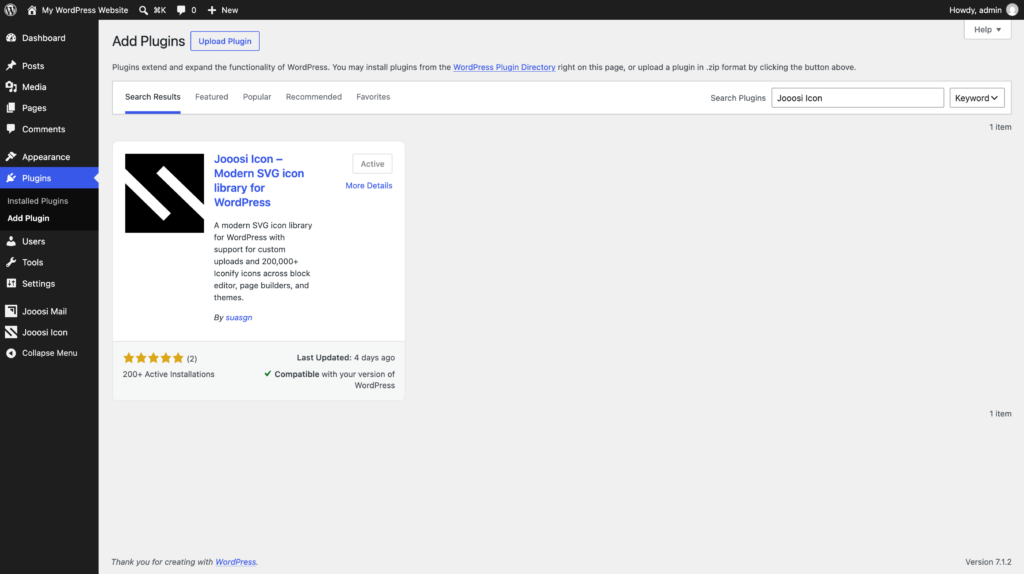
Step 2: Search for Jooosi Icon and choose the matching plugin.
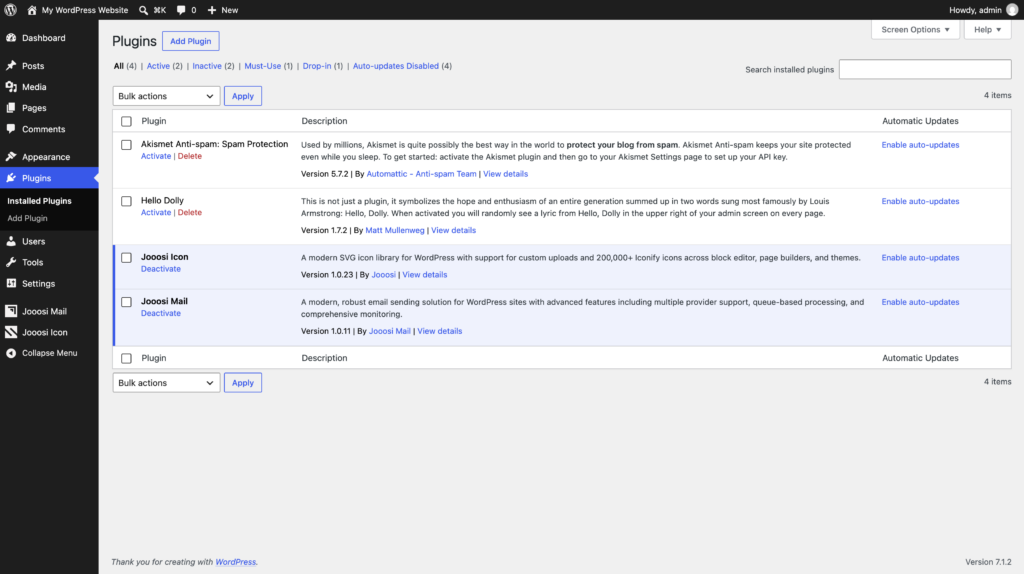
Step 3: Select Install Now, then Activate. Verify that Jooosi Icon is active.
Install from a ZIP file#
If you already have the Jooosi Icon plugin ZIP, install it from the WordPress Plugins screen:
- Go to Plugins → Add New Plugin → Upload Plugin.
- Choose the ZIP archive and select Install Now.
- When installation finishes, activate Jooosi Icon.
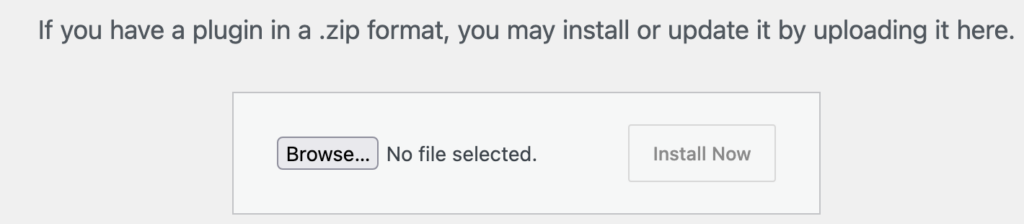
Steps 1–2: Open Upload Plugin, choose the Jooosi Icon ZIP archive, then select Install Now.
Step 3: Activate Jooosi Icon and verify that it is active.
Need help? Read WordPress’s guide to installing a plugin for more detail.
What’s next?#
After activation, open Jooosi Icon in the WordPress admin menu to upload SVGs and manage icon sets. In the block editor, add a Jooosi Icon block and open its picker.
Congratulations! Jooosi Icon is ready. Add your first icon, explore the available icon sources, or open the integration guide for your preferred editor.