Add and style icons in Divi 5 with the Jooosi Icon module. Browse enabled icon collections or enter an icon identifier, then set its dimensions and color in the module settings.
Make sure at least one icon source is enabled in Jooosi Icon. See Icon Sources for setup instructions.
Add the Jooosi Icon module#
Step 1: Open the module inserter#
In the Divi 5 Visual Builder, open the module inserter in the column where you want the icon.
Step 2: Add Jooosi Icon#
Search for Jooosi Icon and select it. In the module settings, open the Content tab and expand Icon.
Choose an icon#
Click the search button beside the Icon field to open the picker. Search by icon name or browse a collection, then select a result. To enter an icon manually, type its full identifier in the Icon field, such as mdi:rocket.
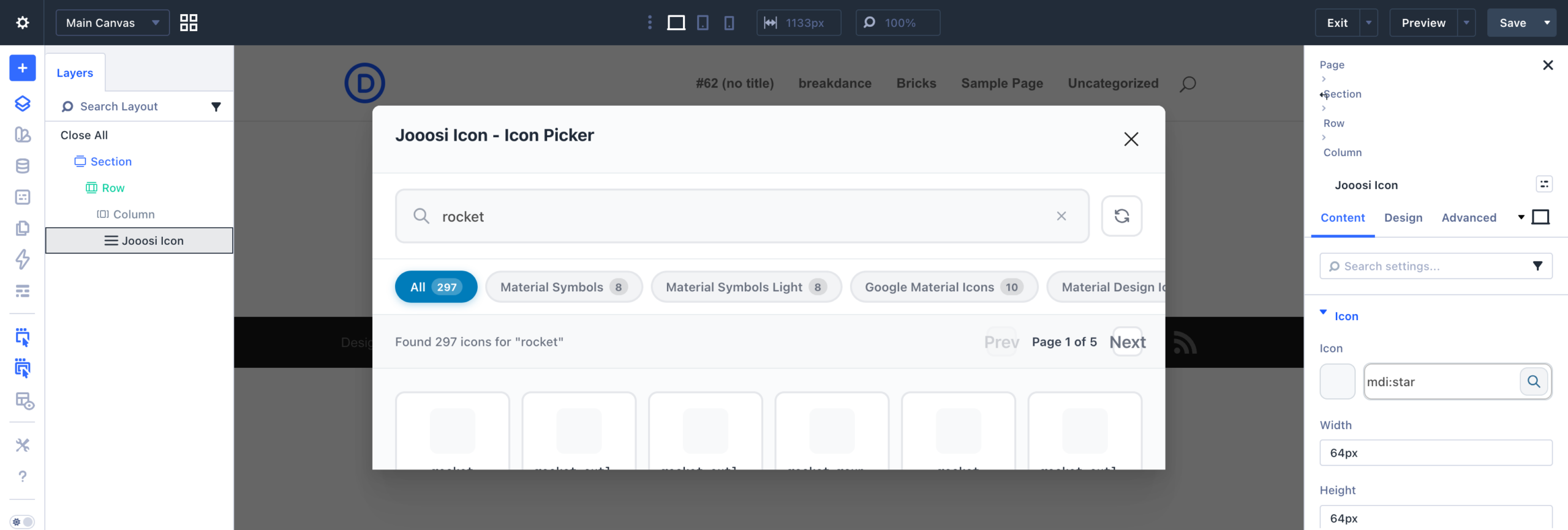
Set size and color#
Set Width and Height with CSS sizes such as 64px or 2rem. If you set only one dimension, Jooosi Icon uses it for the other dimension to keep the icon square. Choose a Color or leave it unset to inherit the surrounding text color.
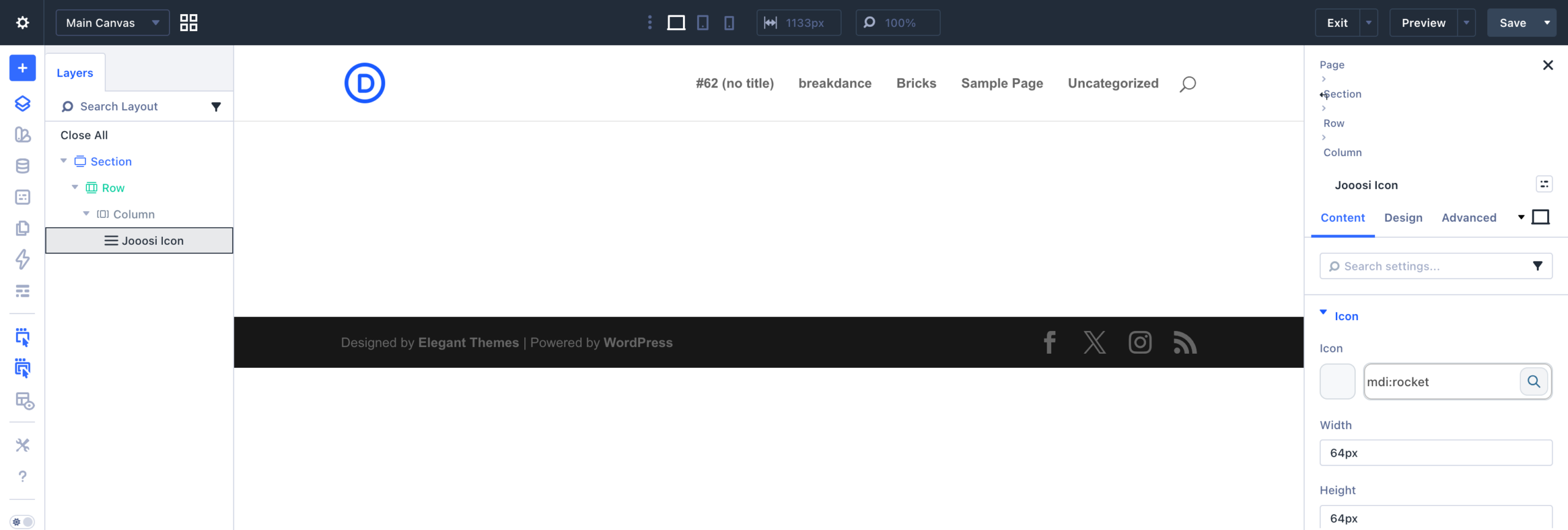
Save and verify#
Save the layout and preview the page at the target viewport. If an uncached Iconify icon is missing, check that the server can reach the Iconify API. Uploaded local SVG icons are served from your site.