The Icon Library includes Font Awesome and IcoMoon and supports imported custom SVG and IcoMoon sets. The native Icon element offers links, rotation, and detailed design controls; Social Icons handles linked social profiles.
With Jooosi Icon, you can search 200,000+ Iconify icons across 150+ collections alongside bundled, local, and custom sources, then reuse the same prefix:name identifier across supported WordPress editors and builders. Its Breakdance integration server-renders sanitized SVG output; Breakdance’s separate SVG upload guide warns that enabling WordPress SVG uploads can introduce security risks.
Add and choose an icon#
Step 1: Add the element#
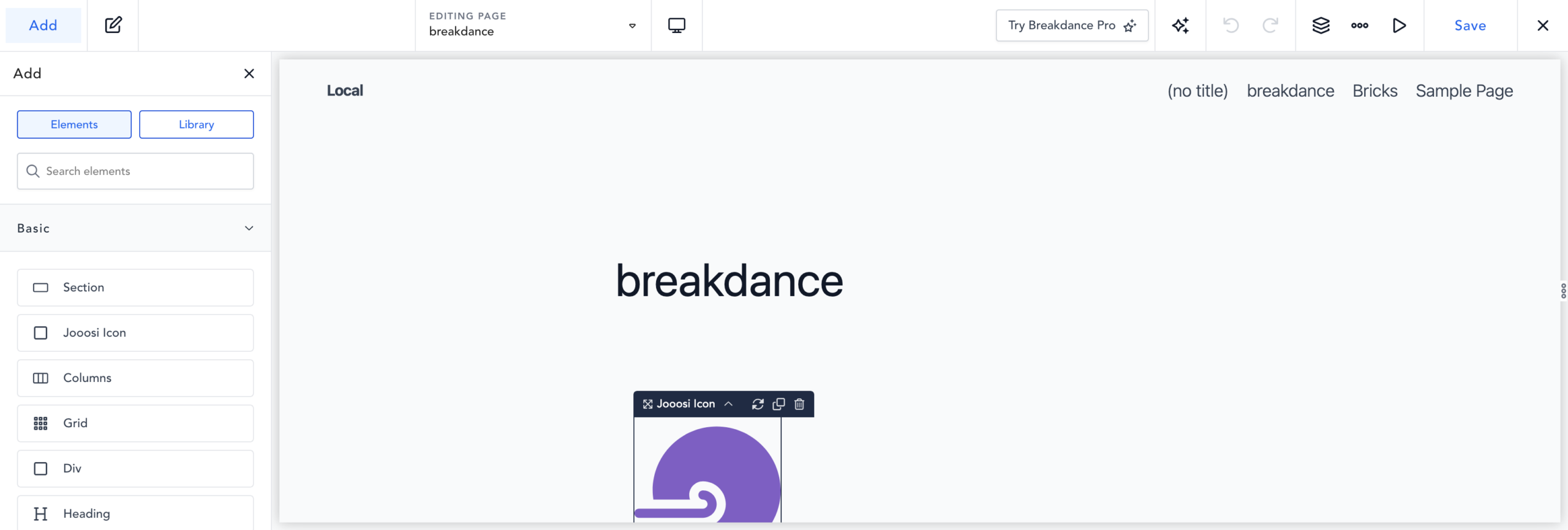
In the Breakdance builder, open the Elements panel, find Jooosi Icon under Basic, and add it to the page or template.
Step 2: Choose an icon#
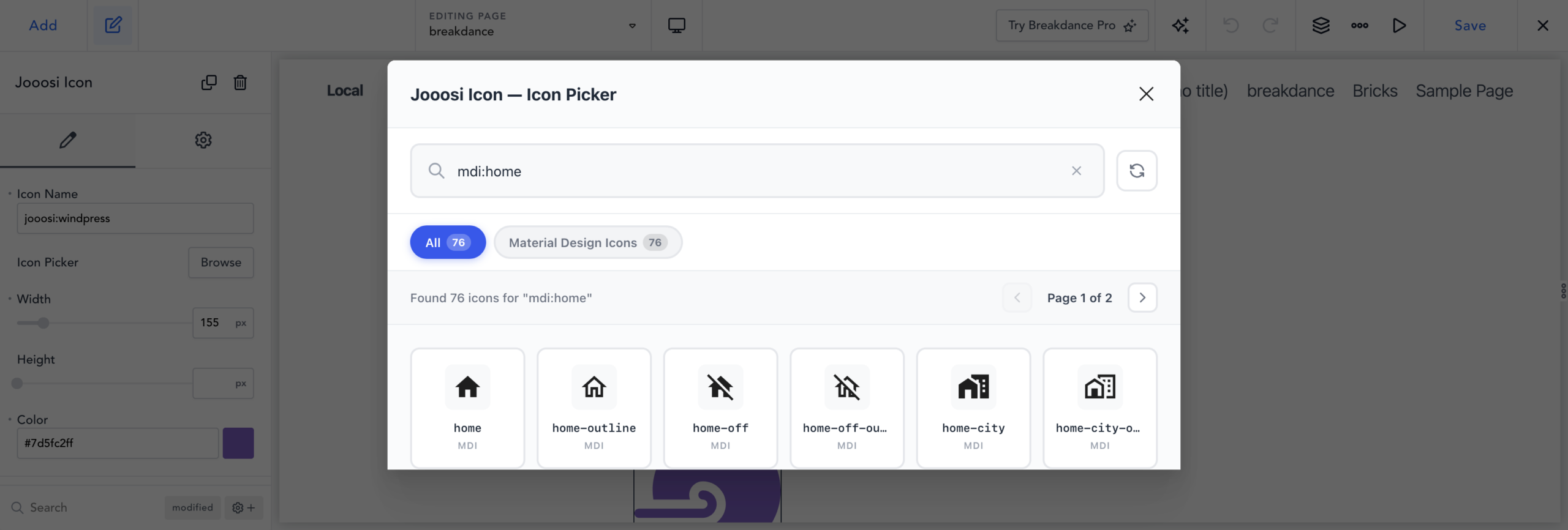
Select Jooosi Icon and expand its Icon controls. Click Browse to search collections or icon names, then select a result. To enter a known icon directly, type its prefix:name in Icon Name, such as mdi:home.
Set size and color#
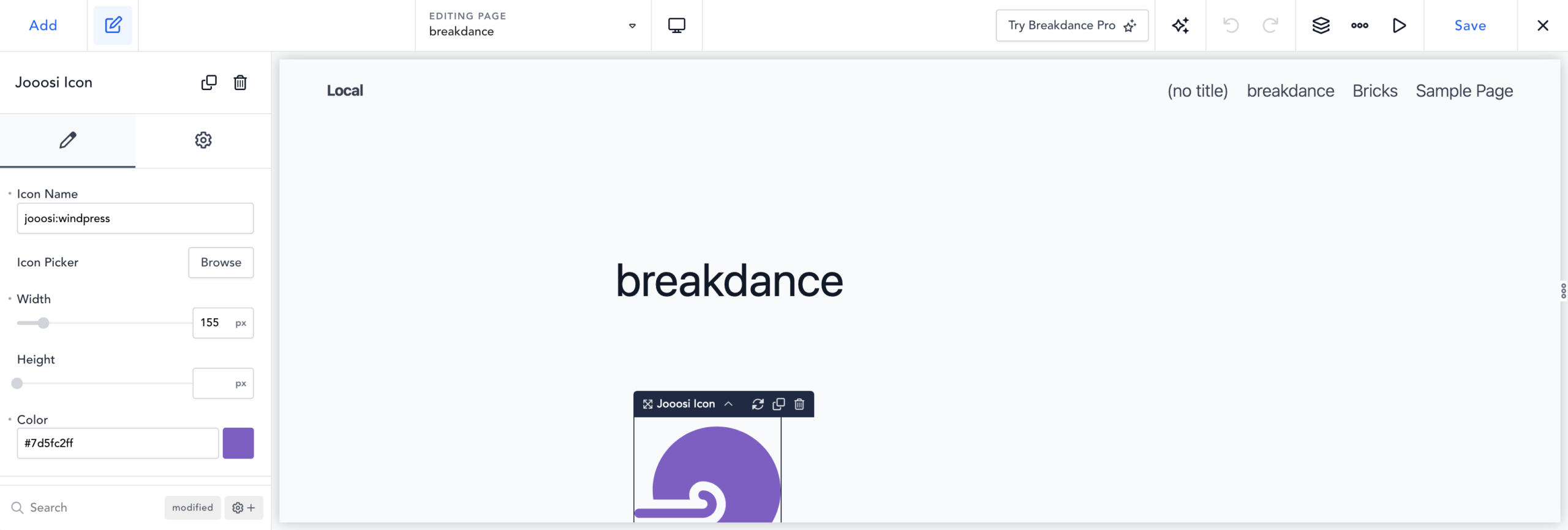
Set Width and Height with the unit controls. Choose a Color, or leave it unset to inherit the surrounding text color.
Save and verify#
Save the page or template in Breakdance, then preview it on the front end to confirm the icon appears at the intended size and color.