Jooosi Icon adds a shared, searchable icon catalog to Bricks: 200,000+ Iconify icons, bundled Jooosi icons, your uploaded SVG sets, and registered custom sources. Reuse the same prefix:name references across supported builders, or populate Icon Name from Bricks dynamic data. Choose it when broad icon discovery, cross-builder reuse, or data-driven icon selection matters.
Add an icon#
Step 1: Add the Jooosi Icon element#
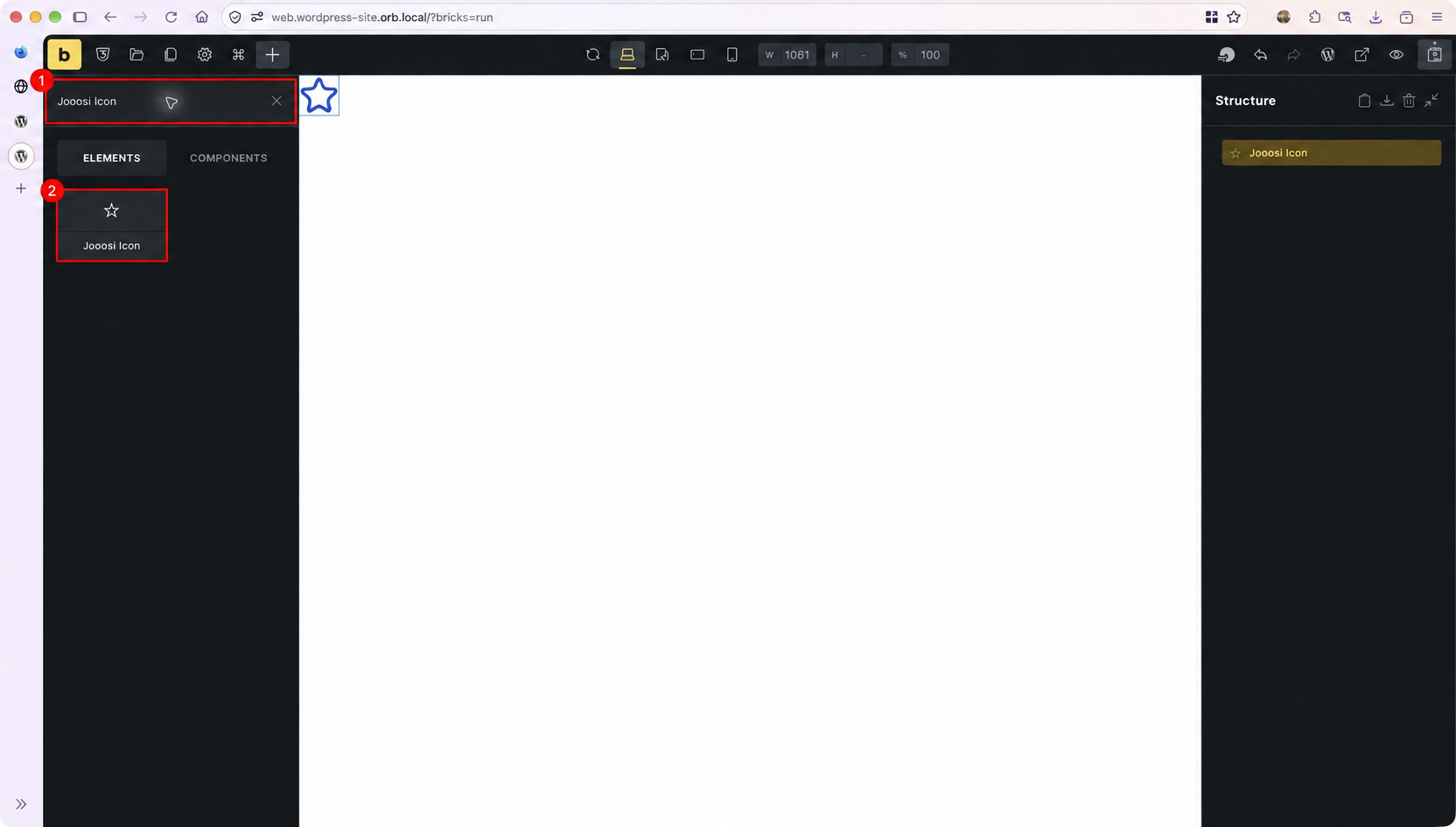
In the Bricks builder, open Elements, search for Jooosi Icon, and add the element to the canvas.
Step 2: Choose an icon#
In the element’s Content controls, select Browse Icons, search by name or collection, and choose a result. The selected icon appears in the preview.
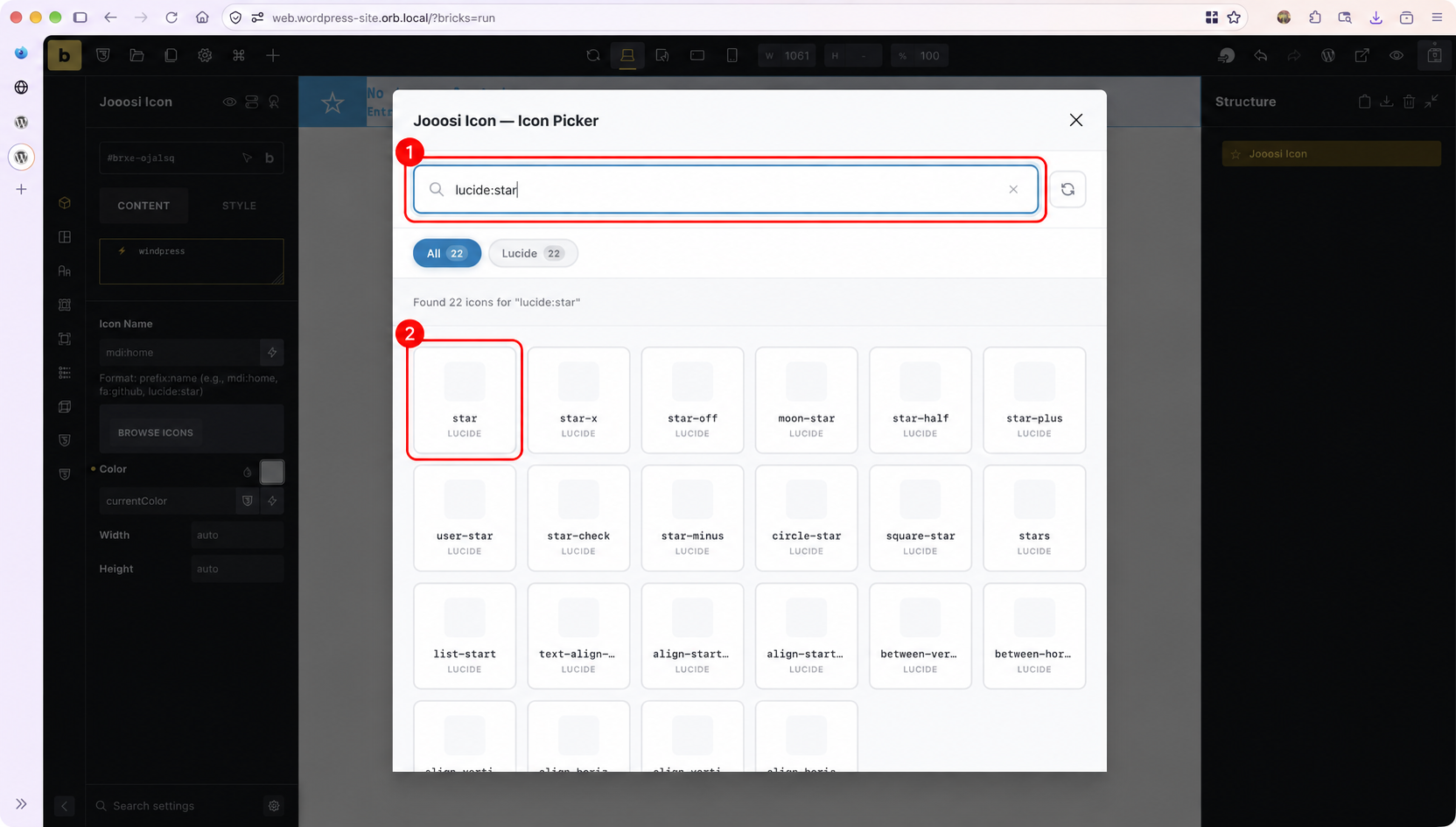
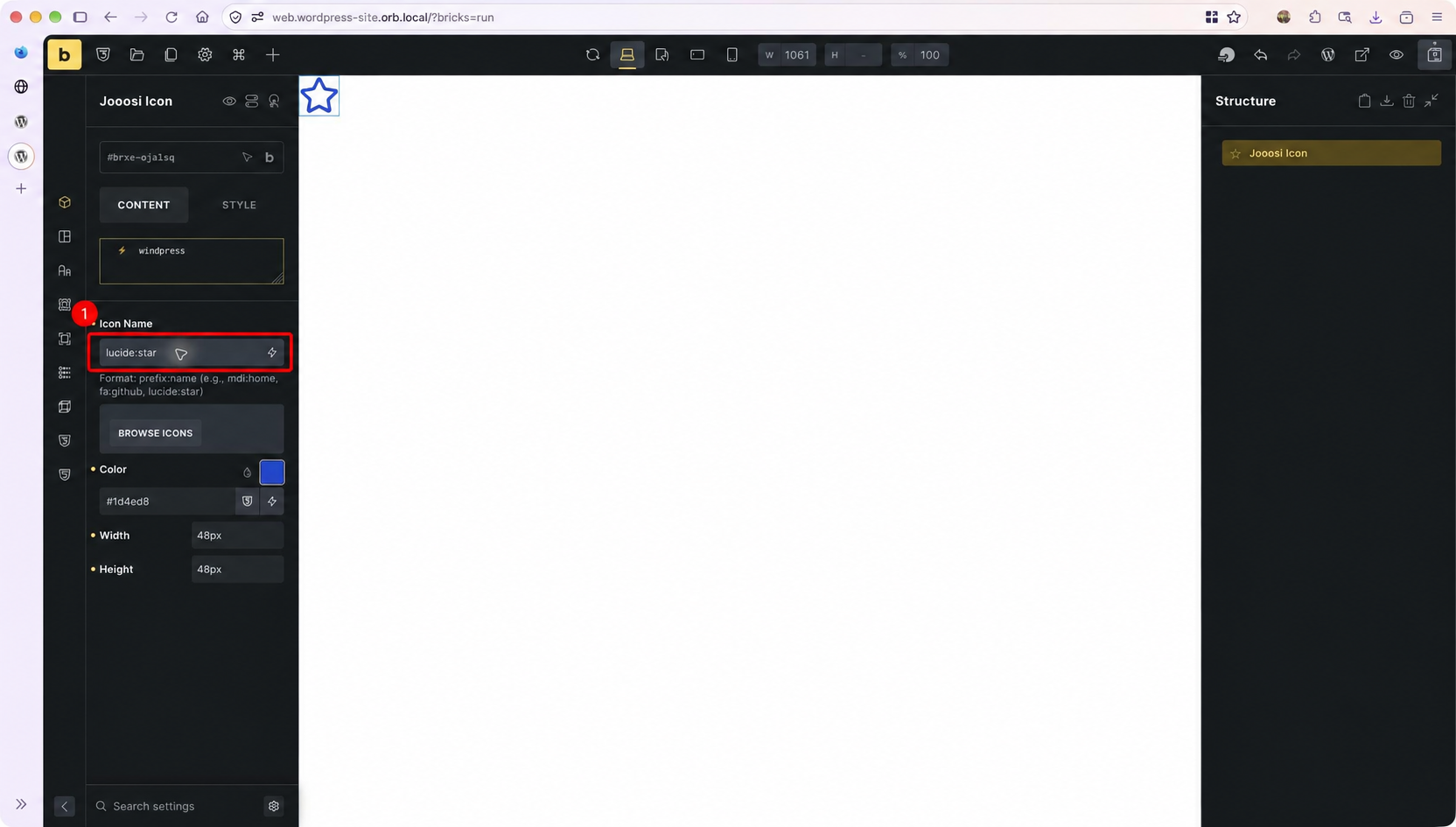
Alternatively, enter a complete prefix:name value in Icon Name, such as lucide:star or fa:github. Check the preview to confirm the name resolves.
Set size and color#
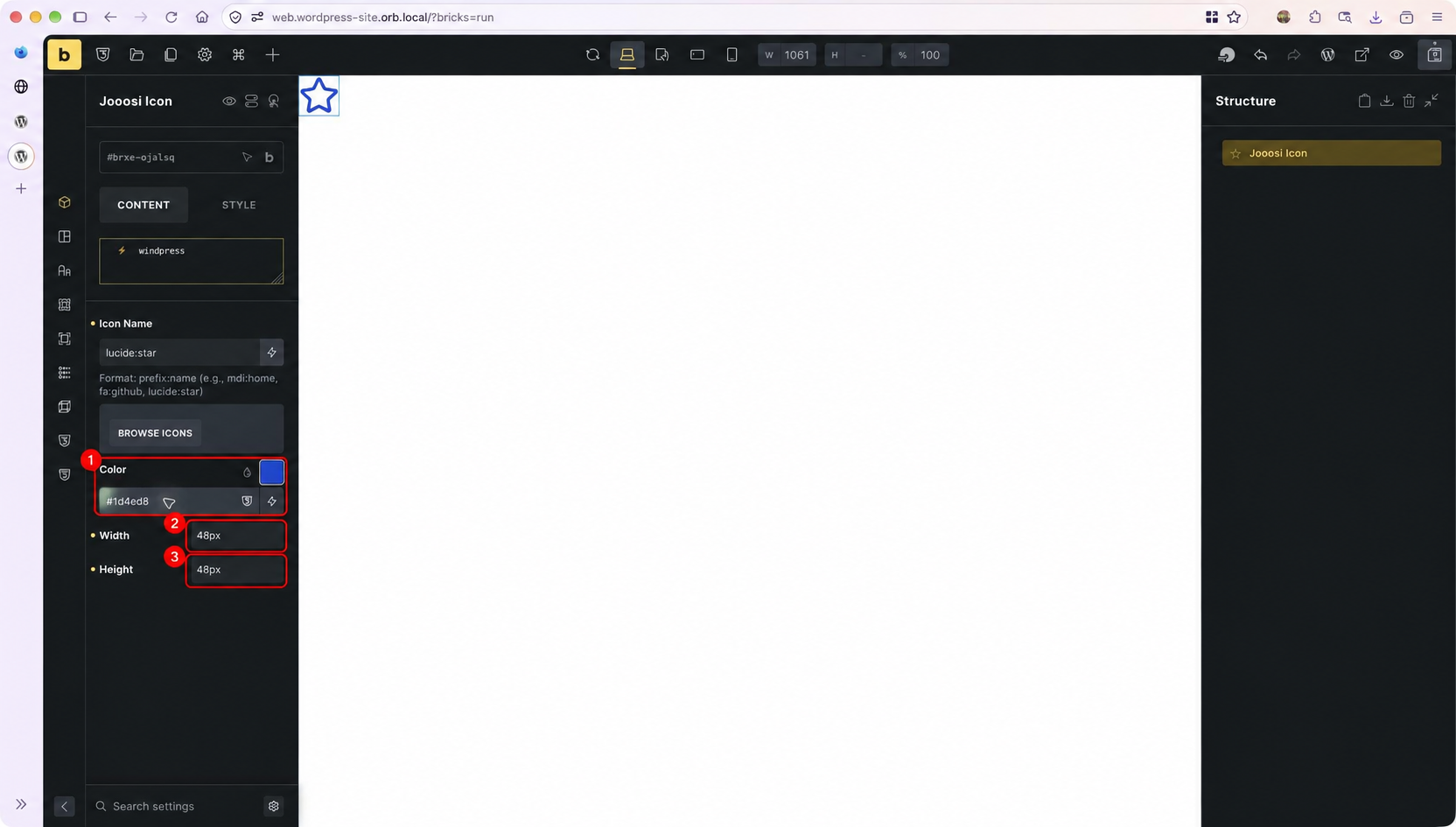
Set Color to a CSS color such as #1d4ed8, or leave currentColor to inherit the surrounding text color. Set Width and Height with their unit controls; for example, 48px each.
Use dynamic data#
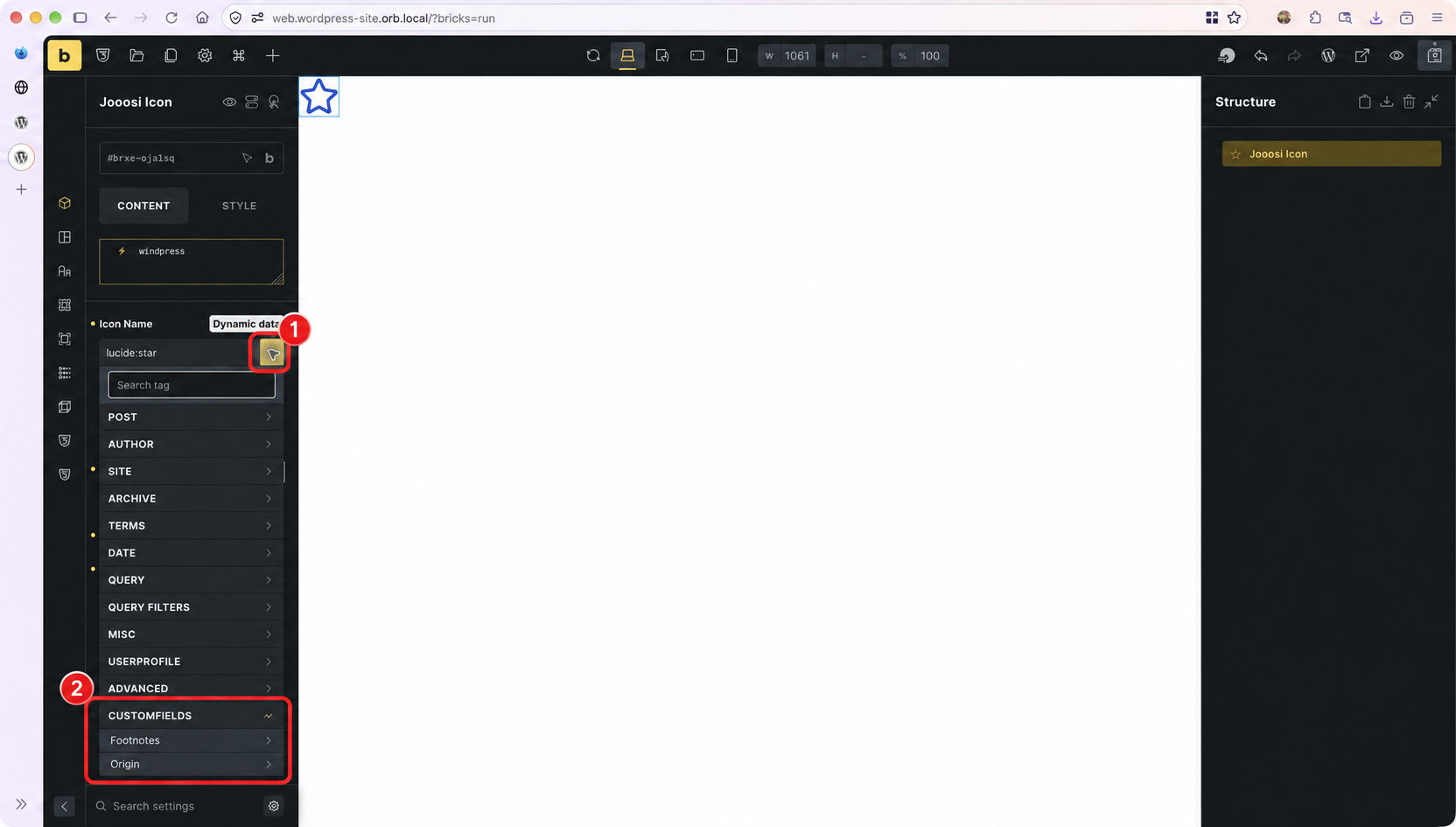
Click the lightning icon beside Icon Name or Color, then choose a Bricks data source. When ACF and Bricks are active, Jooosi Icon registers the {jooosi_icon} ACF dynamic data tag; choose it for the field in your Bricks template, then preview a post or page with a saved icon value to confirm it renders. The resolved Icon Name must be a valid prefix:name value; Color must resolve to a CSS-compatible color.
Click Save in the Bricks toolbar, then preview the page or template to verify the icon on the front end.