Use the Jooosi Icon block to add a searchable icon to a WordPress post or page. Choose an icon from a collection or enter its source name, then adjust its dimensions and color in the block settings.
Add an icon block#
Step 1: Insert the icon block#
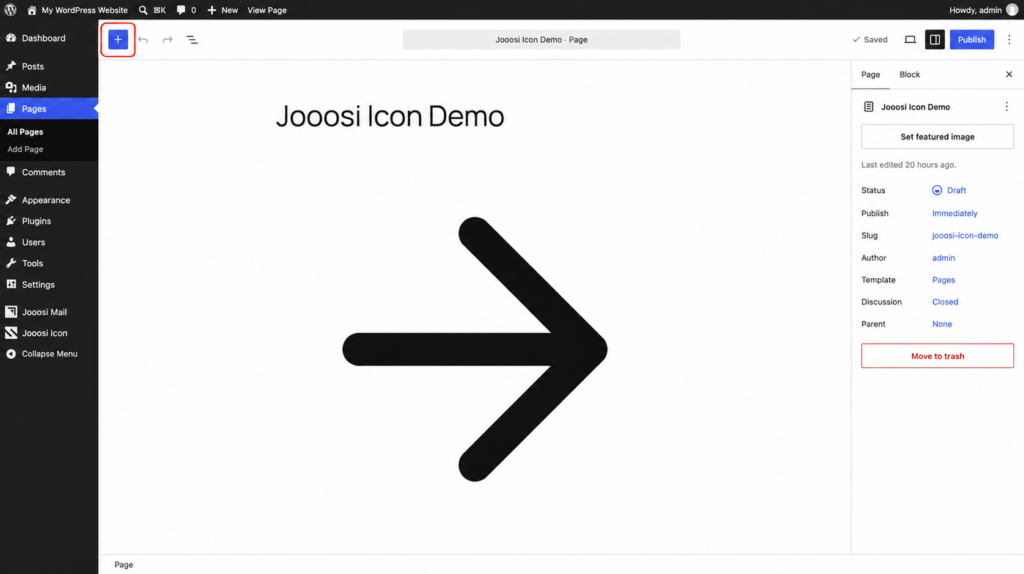
Open the block inserter with the plus button, search for Jooosi Icon, and add it to the page.
Step 2: Choose an icon#
Select the block. In the settings sidebar, open General and choose Browse Icons to open the picker.
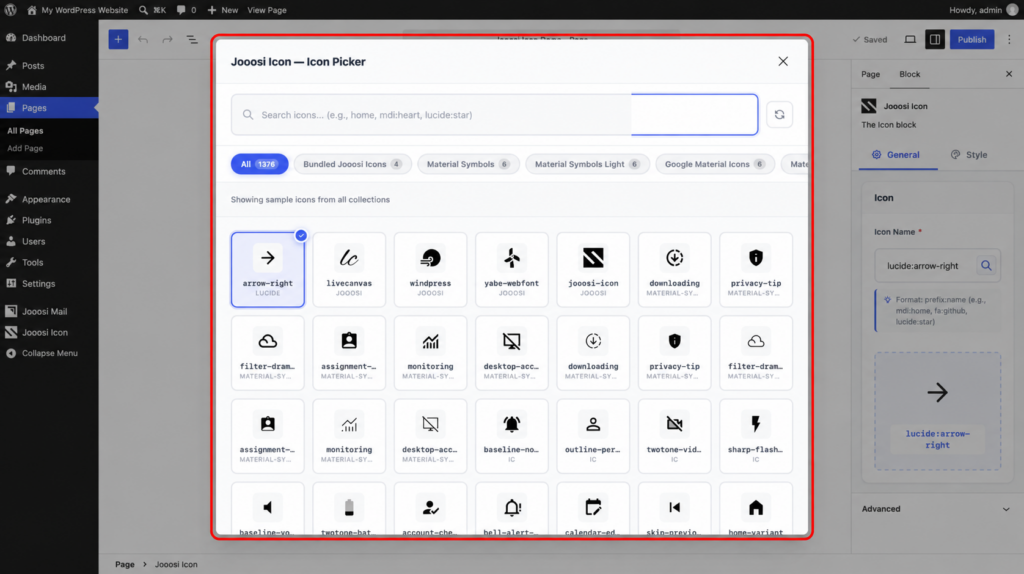
Search for an icon by name or collection, then select a result. The block preview updates with your selection.
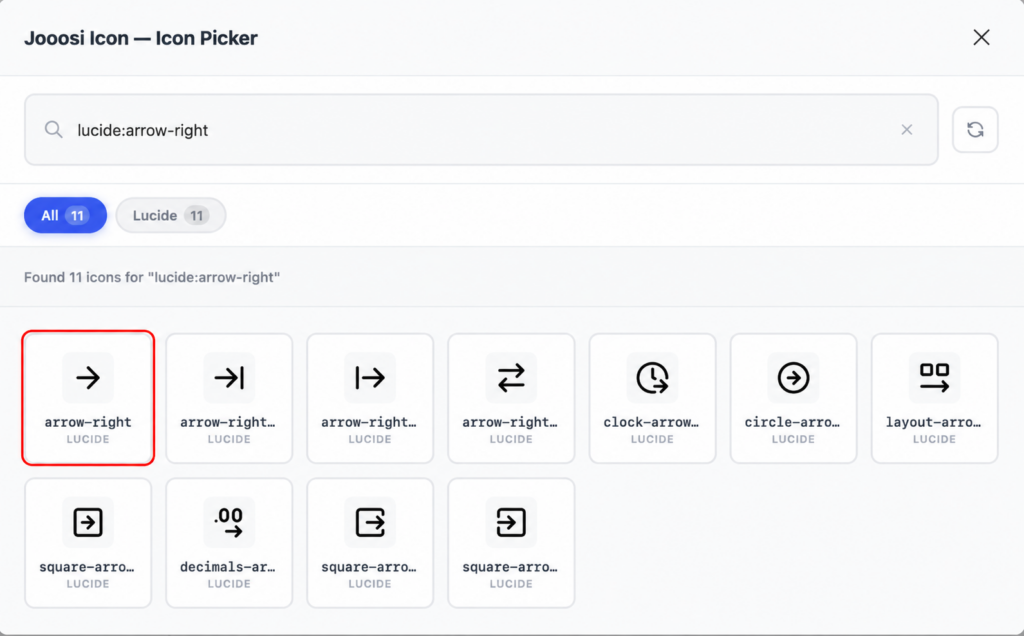
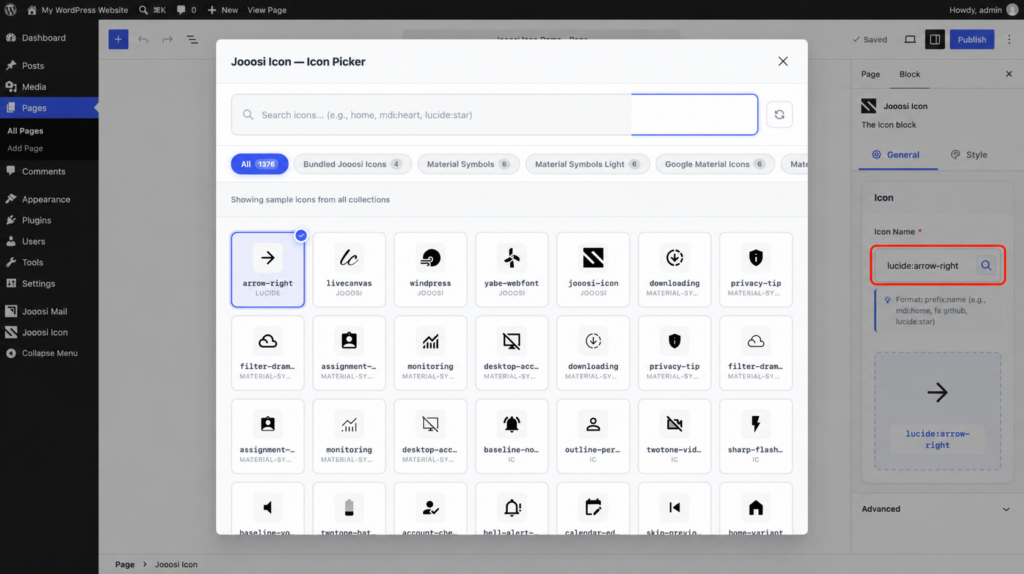
Alternatively, enter a known icon name in Icon Name using the prefix:name format, for example lucide:arrow-right.
Set the size and color#
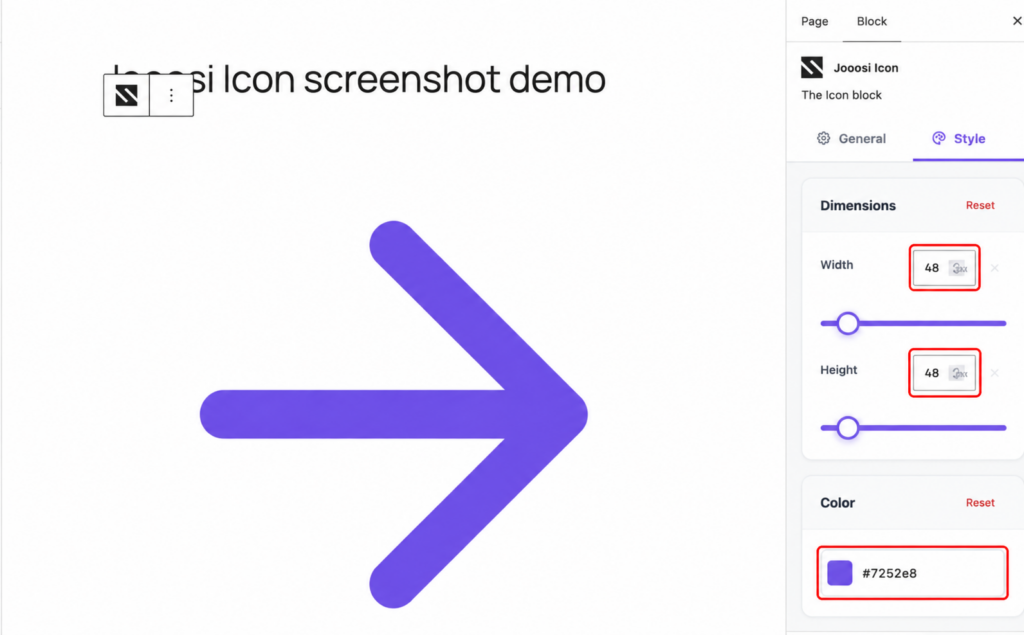
Select the Jooosi Icon block and open its Style tab in the settings sidebar. Adjust Width and Height independently in pixels; clear a value to keep that dimension at its natural size. Set Color, or keep currentColor to inherit the surrounding text color.
Save and verify#
Click Save or Update, then preview the page. Use the parent Group, Columns, or other layout block to control alignment and spacing.