Elementor is the most popular website building platform for WordPress with over 5 million active installs, enabling web creators to build professional, pixel-perfect websites with an intuitive visual builder.
Using custom fonts in the Elementor#
It's easy to use Adobe Fonts or self-hosting Google Fonts in Elementor visual builder. You can use any fonts you have added to Jooosi Fon.
Step 1: Choose the text element#
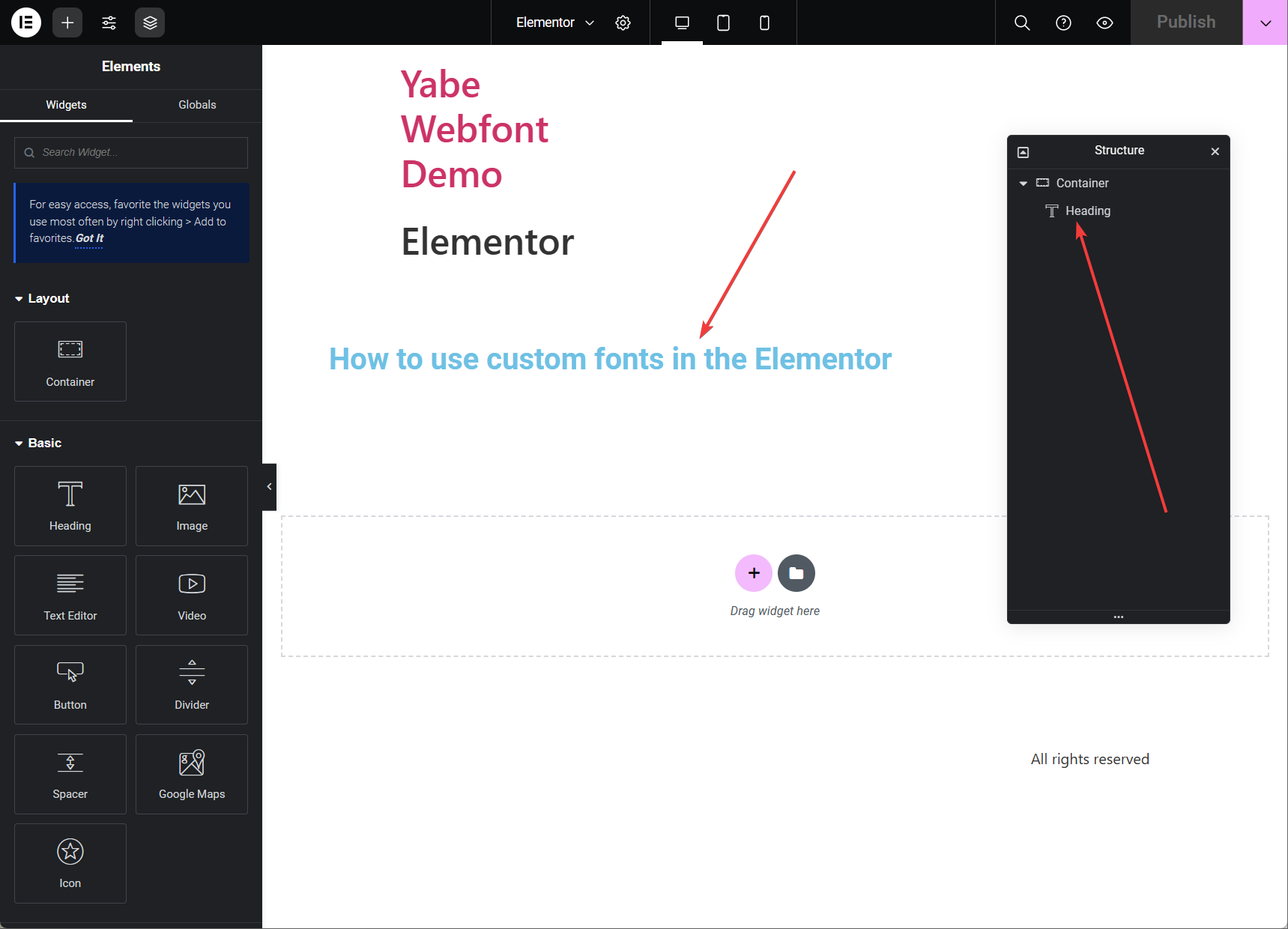
Choose the text element by clicking on the canvas or the Structure panel.
Step 2: Typography settings#
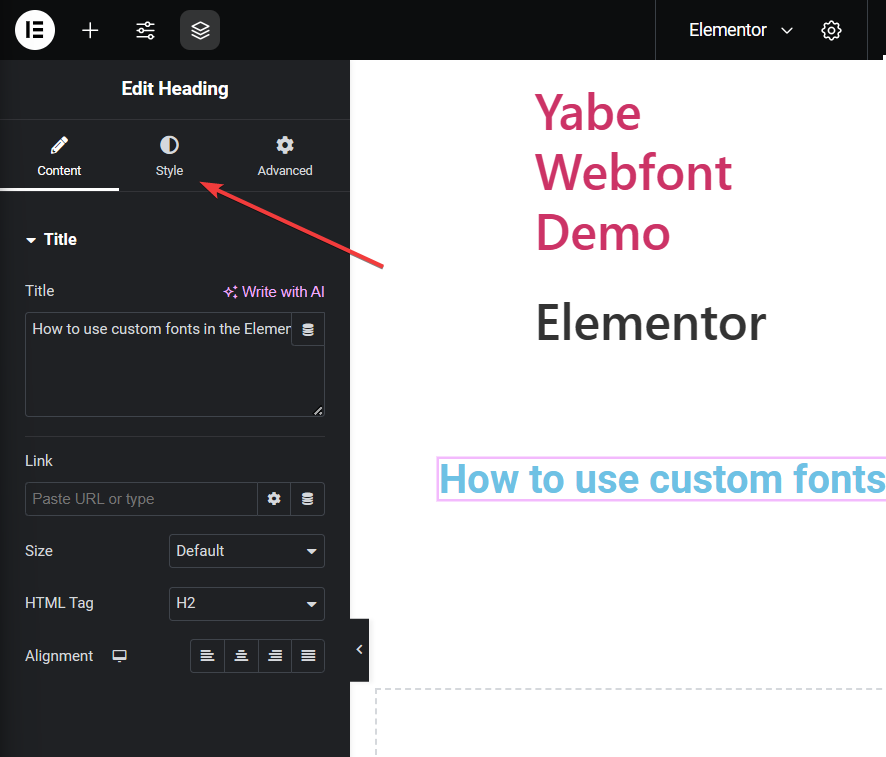
- On the Element's settings panel, click the
icon to open the Style tab.
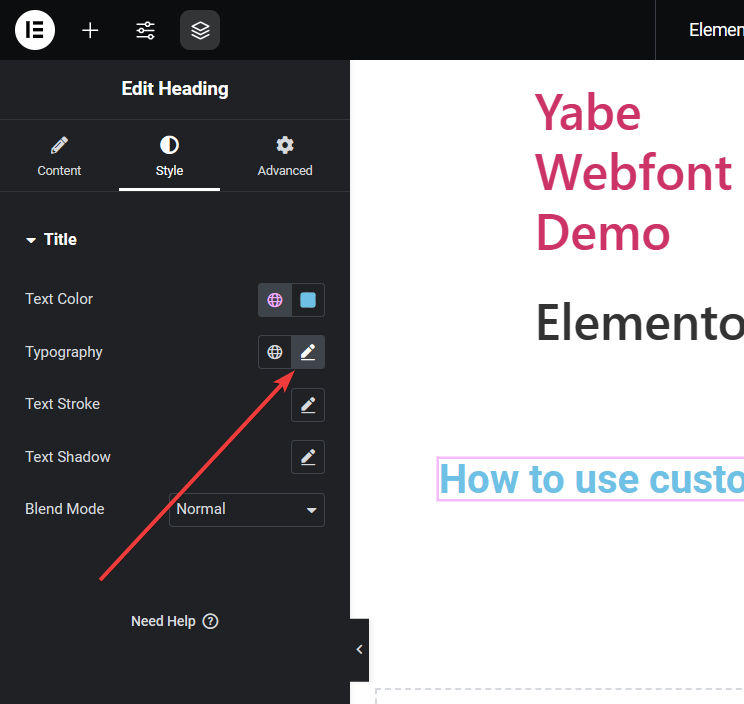
- Click the
icon on the right of Typography label to open the Typography panel.
Step 3: Choose the font#
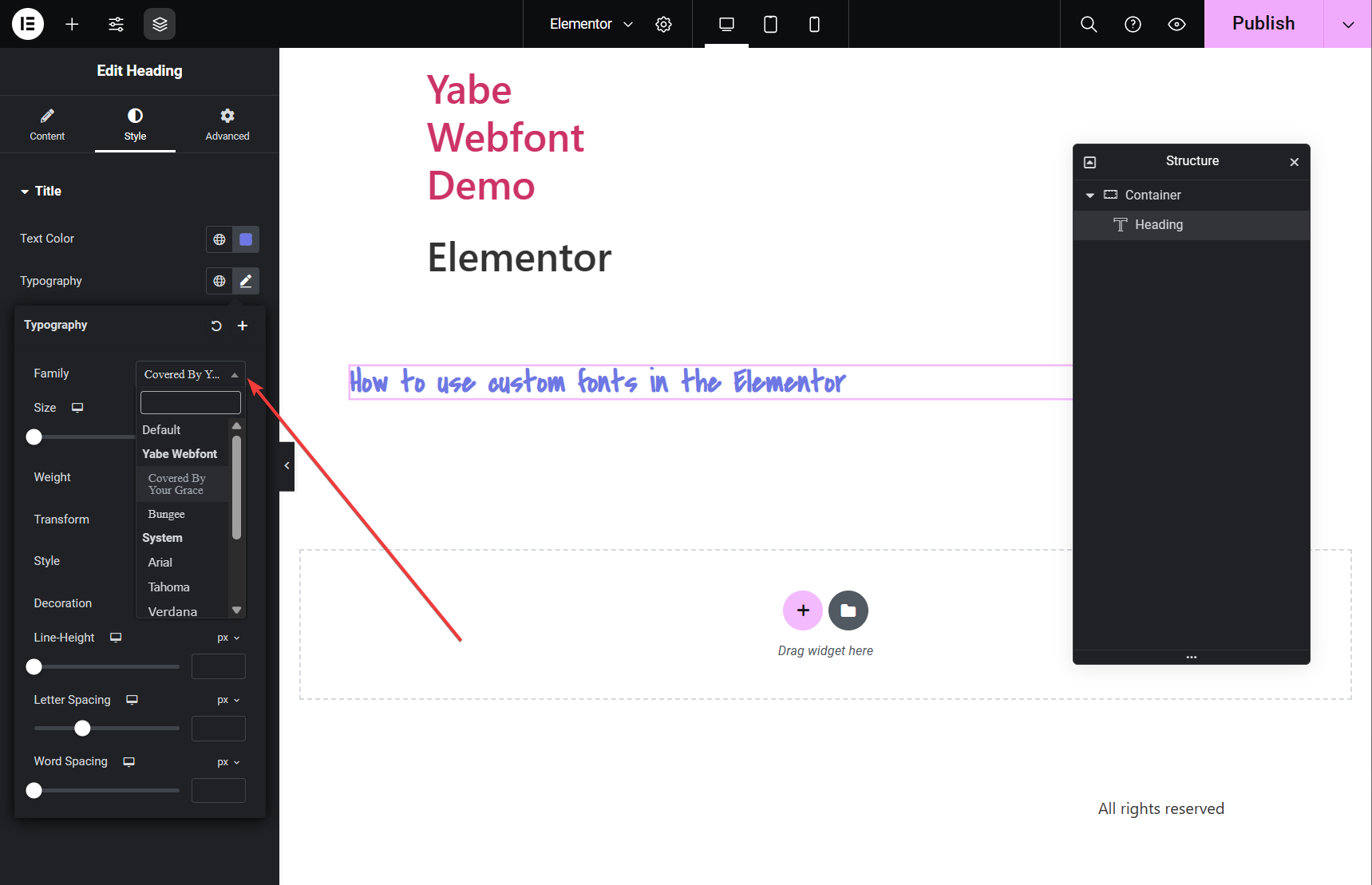
Click the Family dropdown list, then select the font family from the Jooosi Fon group list.
Using custom fonts in the Theme Styles#
You can also use custom fonts in the Theme Styles. Theme Styles is a global style setting that allows you to set the default style for any text elements in the Elementor.
Step 1: Typography settings#
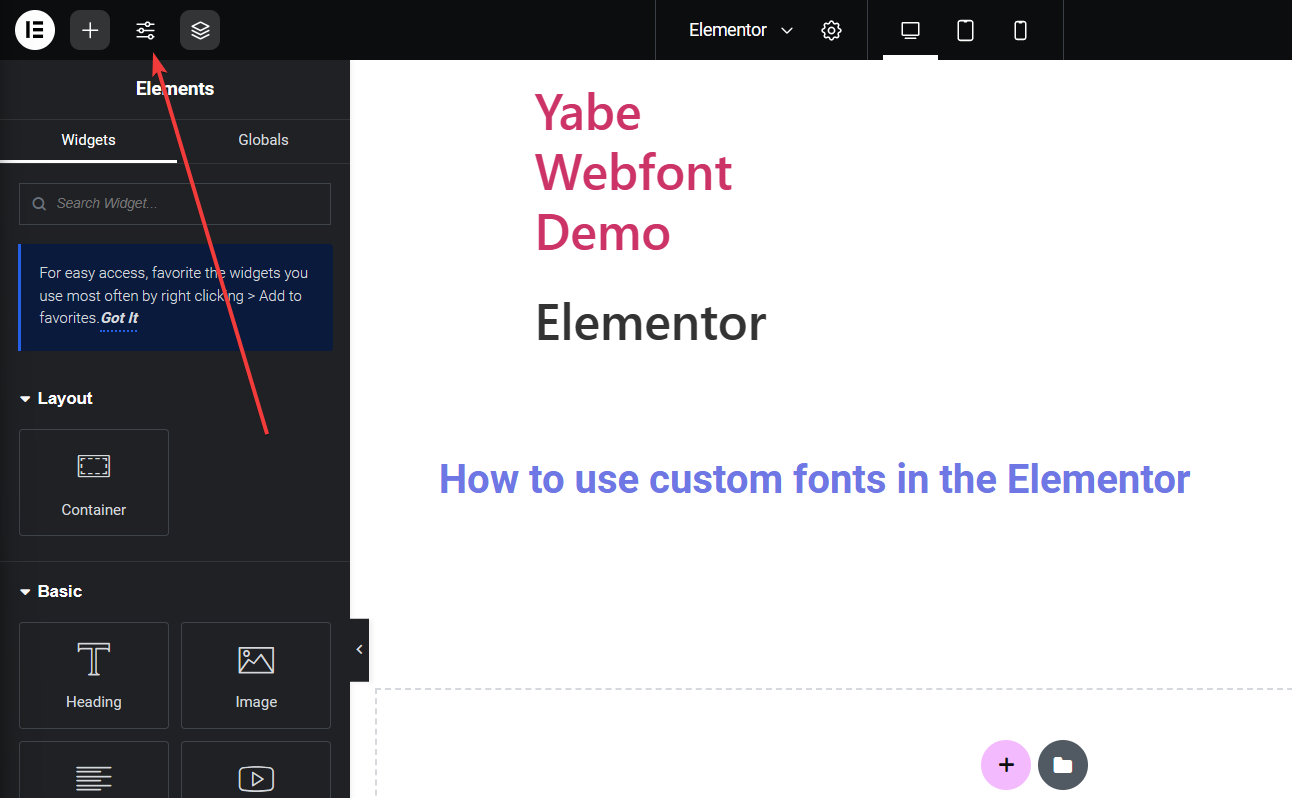
- Click the
icon on the top left corner of the Elementor visual builder to open the Site Settings panel.
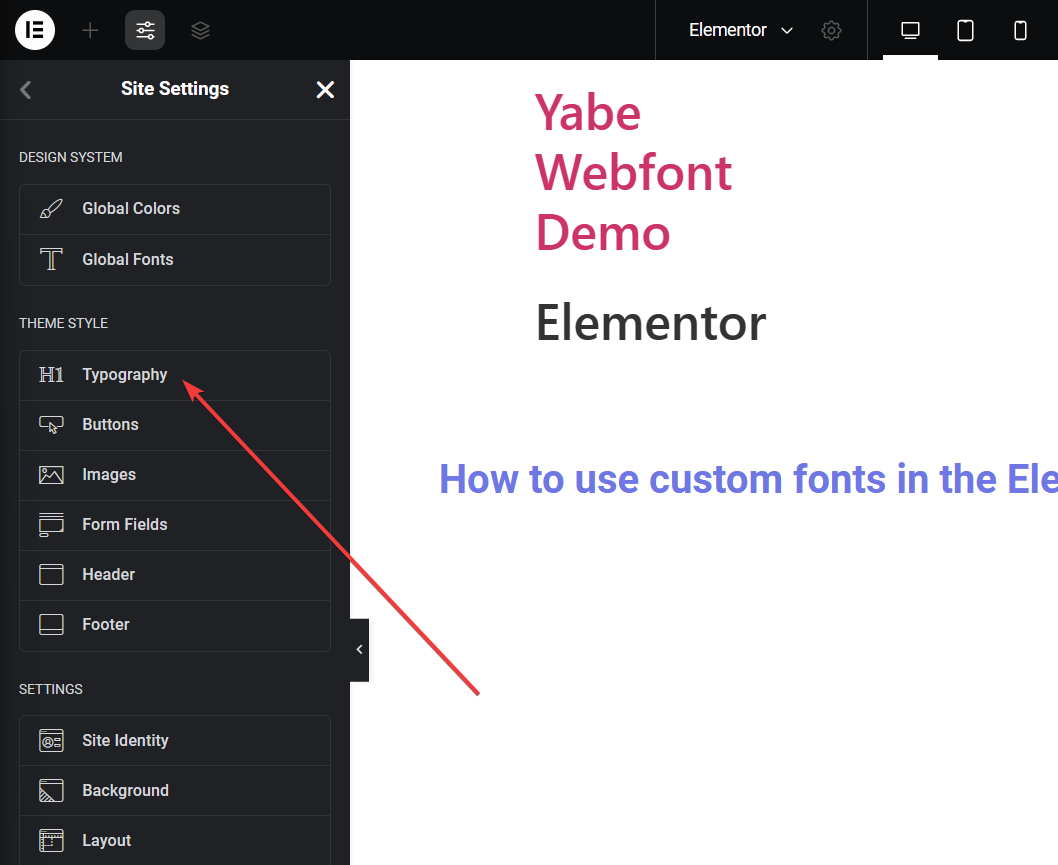
- Click the Typography menu item under the Theme Style section.
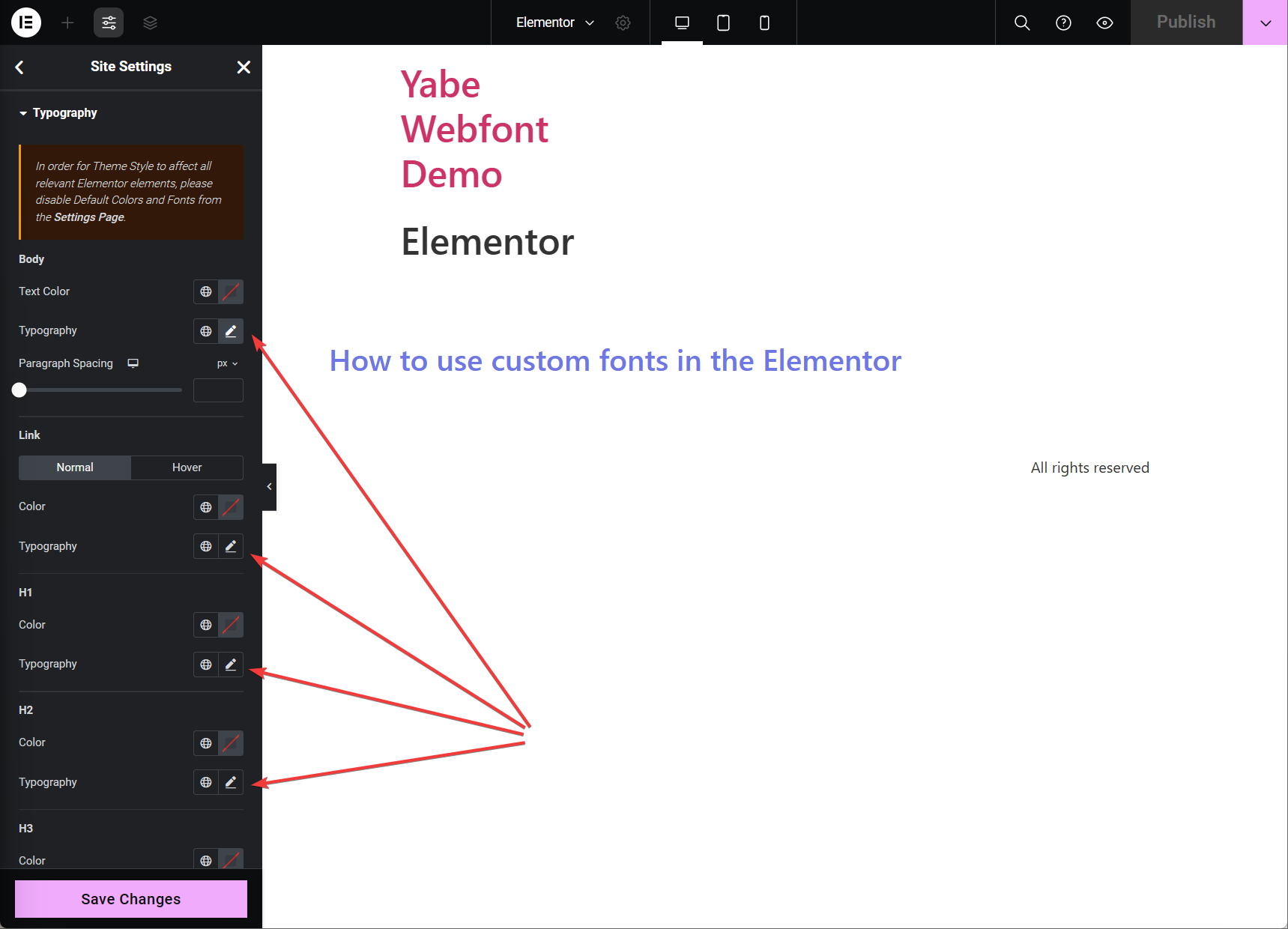
- Choose the element section and click the
icon on the right of Typography label to open the Typography panel.
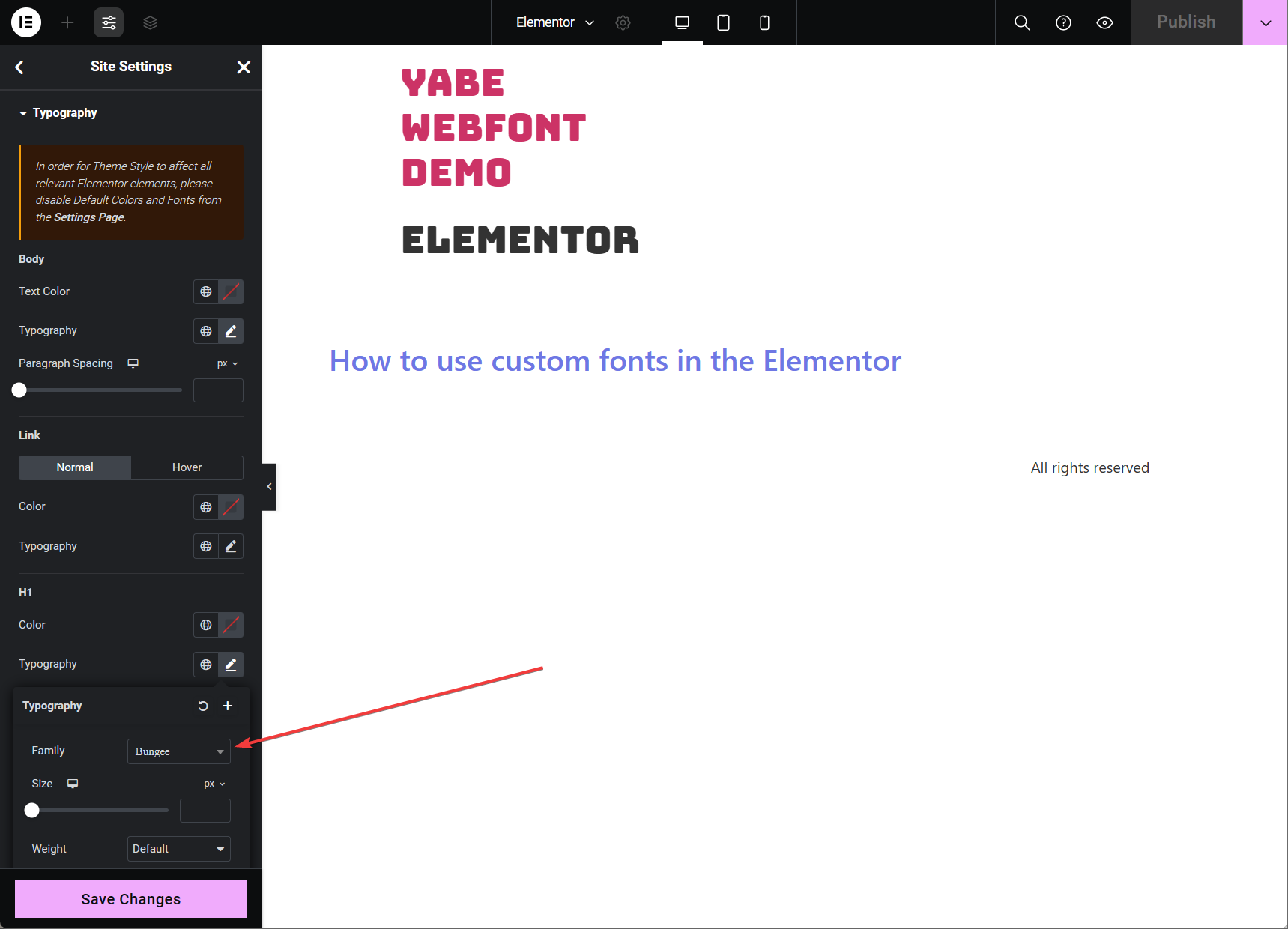
Step 2: Choose the font#
Click the Family dropdown list, then select the font family from the Jooosi Fon group list.
Using custom fonts in the Design System#
You can also use custom fonts in the Design System. It has similar steps as using custom fonts in the Theme Style.
Step 1: Typography settings#
- Click the
icon on the top left corner of the Elementor visual builder to open the Site Settings panel.
- Click the Global Fonts menu item under the Design System section.
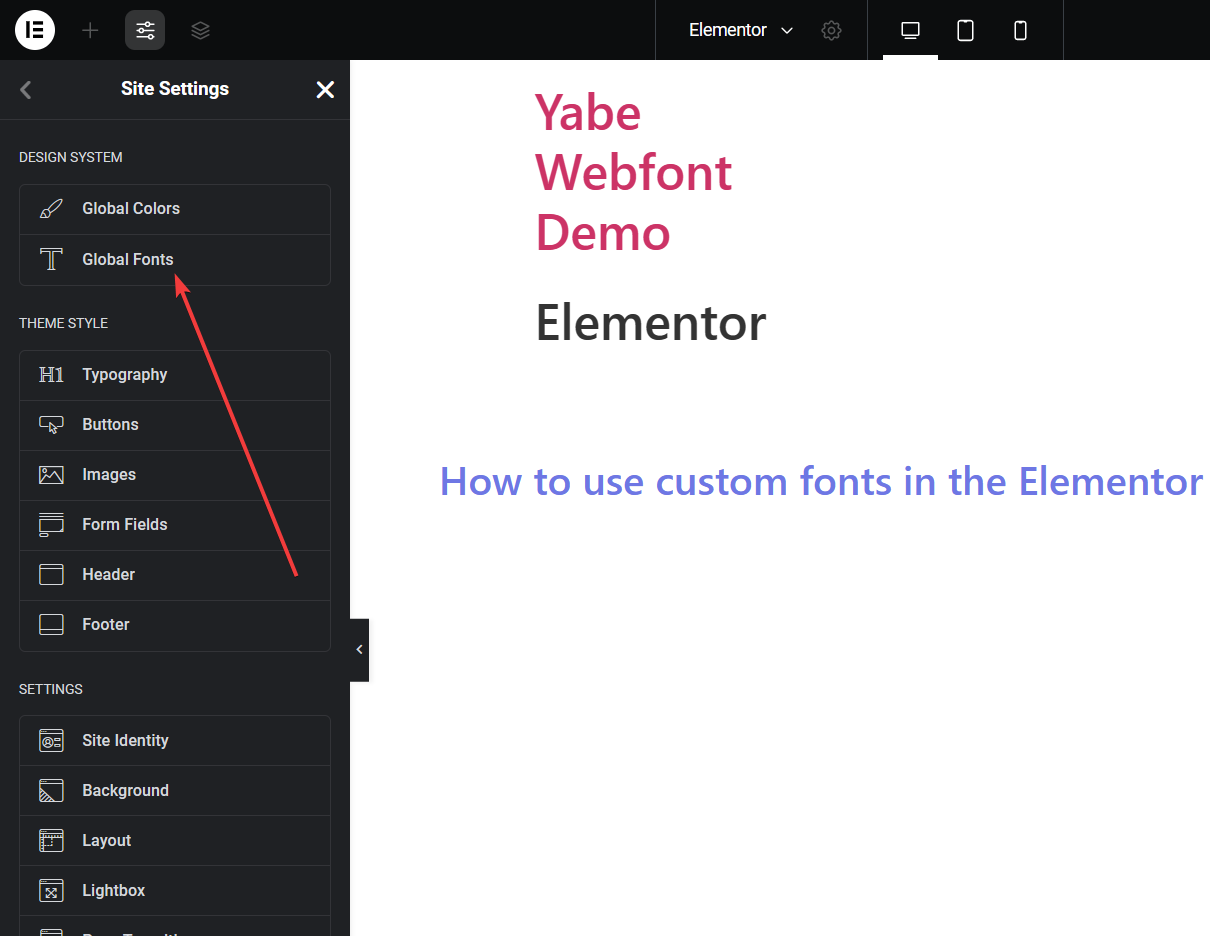
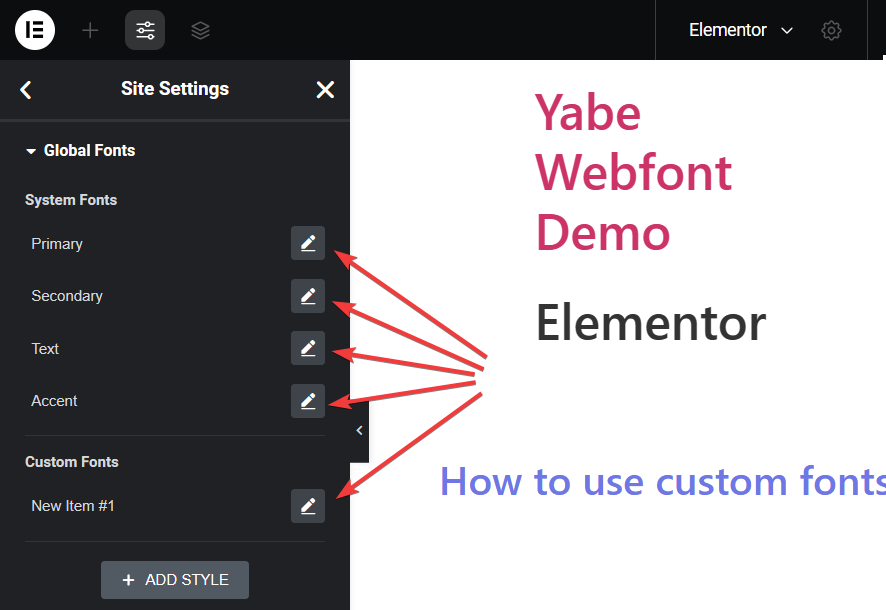
- Choose the item and click the
icon on the right of Typography label to open the Typography panel.
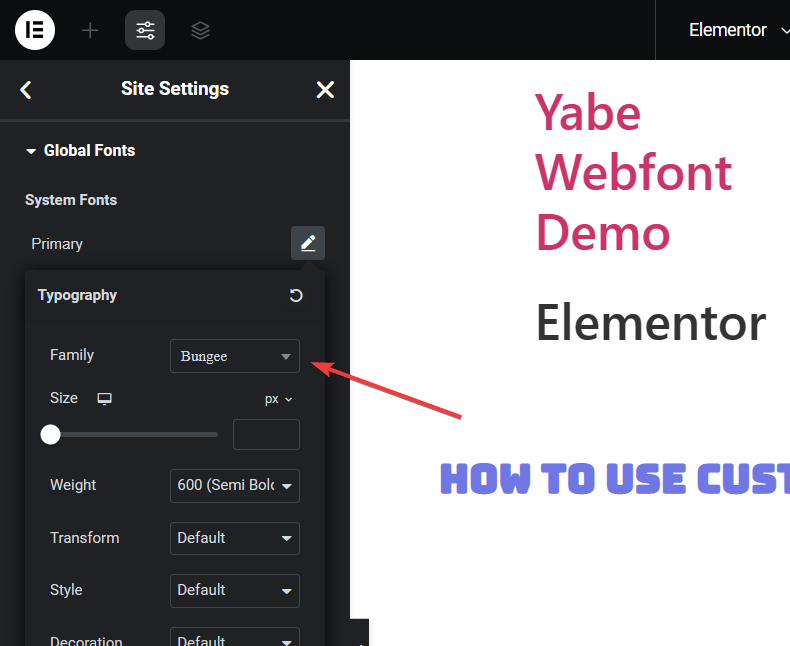
Step 2: Choose the font#
Click the Family dropdown list, then select the font family from the Jooosi Fon group list.
Disable the Google Fonts in Elementor#
Elementor uses the Google Fonts Web API to provide users with the Google Fonts collection. To be GDPR compliant, you must disable the Google Fonts in Elementor.
Jooosi Fon forcibly disables the Google Fonts in Elementor by taking reference from the official documentation, so you don't need to do anything.